HTML is the first language every web developer learns. It is simple, it is free, and you can see the result in your browser in a few minutes.
In this guide you will build your first web page, step by step.
What is HTML?
HTML means HyperText Markup Language. It is not a programming language. It is a markup language: you use it to mark your content, so the browser knows what each part is.
HTML uses tags. Most tags come in pairs – an opening tag and a closing tag.
<p>This is a paragraph.</p>Here <p> opens the paragraph and </p> closes it. The opening tag, the content and the closing tag together are called an element.
Step 1: Install a code editor
Download and install Visual Studio Code (VS Code). It is free and works on Windows, Mac and Linux.
Step 2: Create your first file
- Create a new folder on your computer. Name it
my-first-website. - Open the folder in VS Code: File → Open Folder.
- Create a new file and name it
index.html.
The name index.html is special. Web servers show this file as the home page of a website.
Step 3: Write the basic structure
Type this code in index.html:
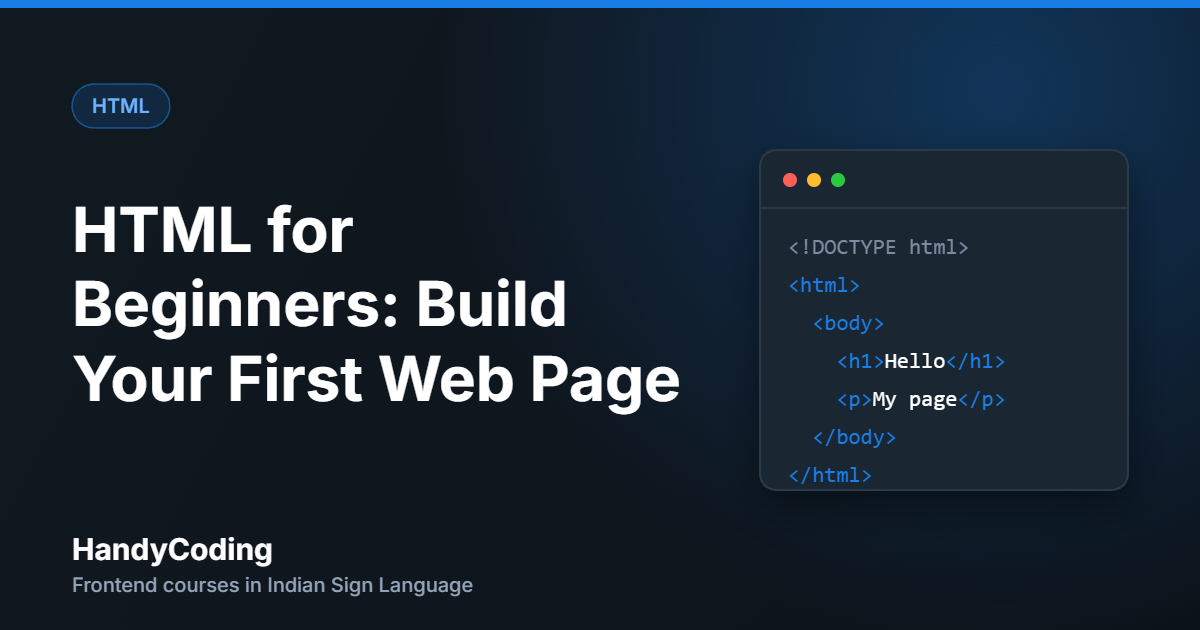
<!DOCTYPE html>
<html lang="en">
  <head>
    <meta charset="UTF-8">
    <meta name="viewport" content="width=device-width, initial-scale=1.0">
    <title>My First Web Page</title>
  </head>
  <body>
    <h1>Hello, world!</h1>
    <p>This is my first web page.</p>
  </body>
</html>
What each part means:
<!DOCTYPE html>– tells the browser this is an HTML5 page.<html>– the root of the page. Everything goes inside it.lang="en"says the page is in English.<head>– information about the page. Visitors do not see it on the page.<meta charset="UTF-8">– lets the page show all letters and symbols correctly.<meta name="viewport">– makes the page fit on mobile screens.<title>– the text shown in the browser tab.<body>– everything visitors see on the page.
Tip: in VS Code, type ! in an empty HTML file and press Tab. VS Code writes this basic structure for you.
Step 4: Open the page in your browser
Save the file with Ctrl + S. Then find index.html in your folder and double-click it. The page opens in your browser. You should see a big heading “Hello, world!” and one paragraph.
Every time you change the code, save the file and then refresh the browser with F5.
Step 5: Add more content
Now add these common tags inside <body>:
<h2>About me</h2>
<p>I am learning <strong>frontend development</strong>.</p>

<h2>My goals</h2>
<ul>
  <li>Learn HTML</li>
  <li>Learn CSS</li>
  <li>Build my first website</li>
</ul>

<a href="https://handycoding.com">Visit HandyCoding</a>

<img src="photo.jpg" alt="My desk with a laptop"><h1>to<h6>– headings. Use only one<h1>on a page.<p>– a paragraph.<strong>– important text. The browser shows it in bold.<ul>and<li>– a list with bullet points. Use<ol>for a numbered list.<a>– a link. Thehrefattribute holds the address.<img>– an image.srcis the image file andaltdescribes the image in words.
For the image, put a picture named photo.jpg in the same folder – or change the name in the code to match your picture.
4 common beginner mistakes
- Forgetting the closing tag.
<p>Hellowithout</p>can break your layout. - Wrong file extension. The file name must end with
.html, not.txt. - Not saving before refresh. If you do not save, the browser shows the old page.
- Skipping the alt text. Alt text helps people who use screen readers. It also shows when the image does not load.
Common questions
Is HTML hard to learn?
No. HTML is one of the easiest languages to start with. You can learn the basic tags in a few days of practice.
Do I need internet to write HTML?
No. You only need a code editor and a browser. Your page opens from your own computer.
What should I learn after HTML?
Learn CSS next. CSS adds colours, fonts, spacing and layout to your HTML page.
Keep going
You have built your first web page. Next come tables, forms, audio, video and semantic HTML5 elements. Our course HTML5: From Zero to Website Structure covers all of these with Indian Sign Language (ISL), visual demonstrations and practical coding exercises.
New to coding? Read What Is Frontend Development? first.